Data Filter Options
Many of the features in the user interface (Dashboards, Analyze, Assets, Reports) provide filtering capabilities to control the data that gets displayed. Setting these filters starts with Data Source selection, which is used to select Jobs and Scans. The data can then be filtered using asset tag filters, custom severity sets, risk filters, and exclusion inclusion.
The following example shows filter options for analyzing detailed scan results.
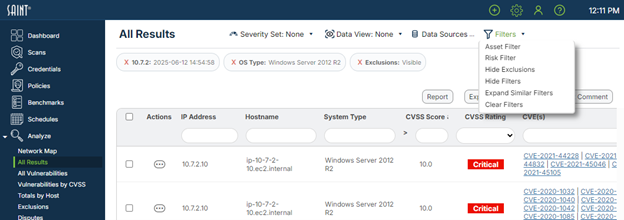
Note that the filters you set will be retained as you navigate throughout the product. For example, if you set the Exclusion filter on a page in the Analyze section, the results you see in Dashboards will reflect all results for the selected data sets, including those that have been flagged as Exclusions.
Filter Pills
The current data context is displayed below the Filters menu using a set of display “pills” that each contain a filter value, shown below.
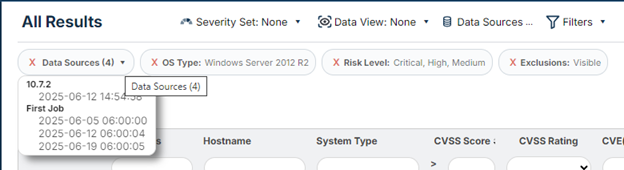
The Data Source and Asset Filter pills, by default, collapse into a single pill when there are four or more values selected. This functionality can be controlled by using the “Expand/Collapse” option in the Filters drop down menu.
To remove a filter, click the red “X” on the left side of the filter pill. Clicking the “X” on a pill that has been collapsed, as shown in the above screenshot, will remove all values from that filter. Individual filters can still be removed by using the Data Sources and Asset Filters dialogs, or by using the “Expand” option in the Filters drop down menu and then using the “X” inside of the pill.
To remove all filters, use the “Clear Filters” option in the Filters drop down menu.
If you want to hide the filter pills without clearing them, use the “Show/Hide” Filters option from the Filters drop down menu.
Select Data Set
The Select Data Set option enables you to select one or more scan results (scans) produced by previously executed scan jobs, and set these data sets as the context across the application. As shown below, Job column values can be selected by the user, to include associated values such as Target Group, Scan Policy, User Group or User (job owner). Clicking on a job displays the list of scans executed for the job, to include the date/time the scan was completed; job title, and the number of vulnerabilities found during the scan. You may choose one or more jobs to merge entire collections of scan results into a single result for analysis. Or, you may select one, multiple, or all scans executed within a single job to view scan results.
The selector also provides the capability to set the number of scans to retrieve to support trend analysis. In the Scans panel, you can enter one (1) in the “__ most recent scans” option to always use the most current scan run data for the selected job(s); or enter a number greater than one if you want to use more than one scan result for a selected job to support trend analysis.
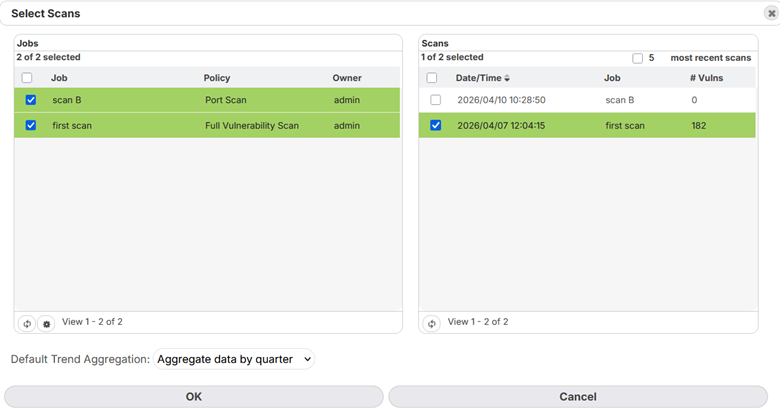
If you are on the Dashboard or Report page, there is also an option to set the default trend aggregation to none, monthly, quarterly, or yearly. This tells the dashboard whether to merge all the scans from the same month, quarter, or year together for the purposes of trend analysis and history. This is useful if you have multiple recurring scans that need to be analyzed together. This option only affects trend analysis panels and reports, and can be overridden for individual panels in the panel’s options menu or for individual reports in the report’s advanced options.
Note that you are not restricted on the type of results you can select for analysis. This means that you can select multiple types of scans (e.g., full vulnerability scan; an XCCDF configuration policy scan; and a Pen Test policy scan), and produce a single output in both the Dashboard and Analyze grids. This can be beneficial in displaying raw output, but note that results may not be useful in computing particular types of dashboards more directed at vulnerability counts, or other risk-specific areas.
Understanding the Content Counts
The following is an example of a user view choosing all jobs in the job selector to gain visibility of all scans executed for those jobs. The grid counts describe jobs and scan results as follows:
Jobs:
View x – x of x – These grid counts mean there are 15 total jobs in the current display, and 15 total jobs in the system. Currently, this grid is not designed to “page” rows by a limited row count per page, so all jobs are available for sorting and use within the single page.
Scans:
View x – x of x – These grid counts mean that there are 14 total scans completed or being executed (ready; queued; in progress), and 13 are visible and available for selection for analysis. The one indicates that the user has selected a single scan result for display.
In a more practical example, a user has selected to view all completed scans run for two recent Jobs that used the PCI scan policy. Two scans were completed. The user chooses to select the first job for analysis.
Hide/Show Exclusions
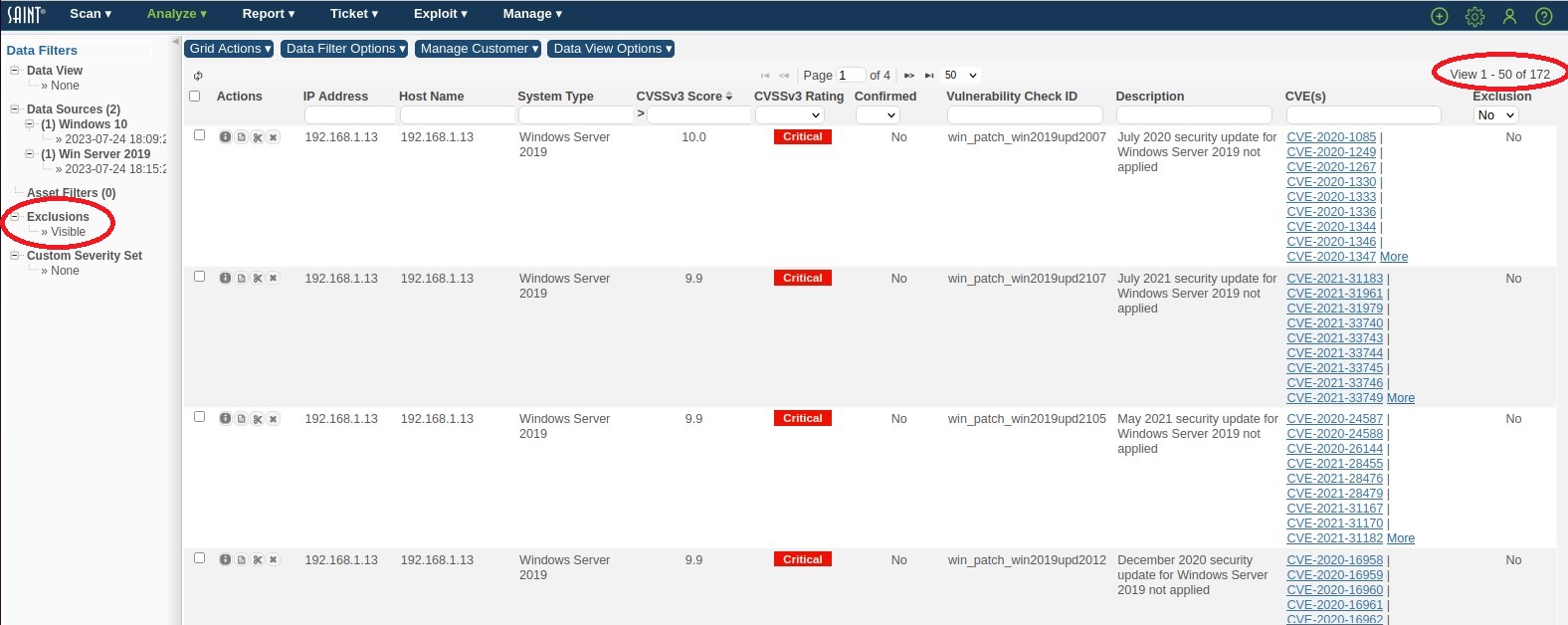
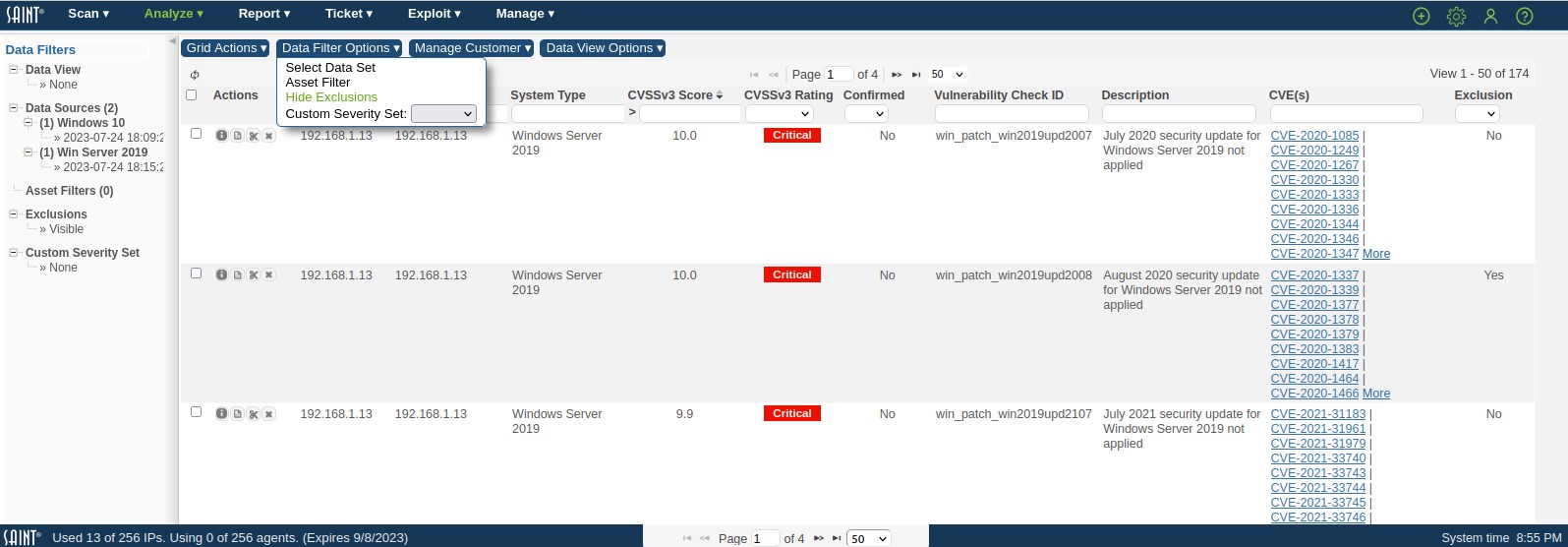
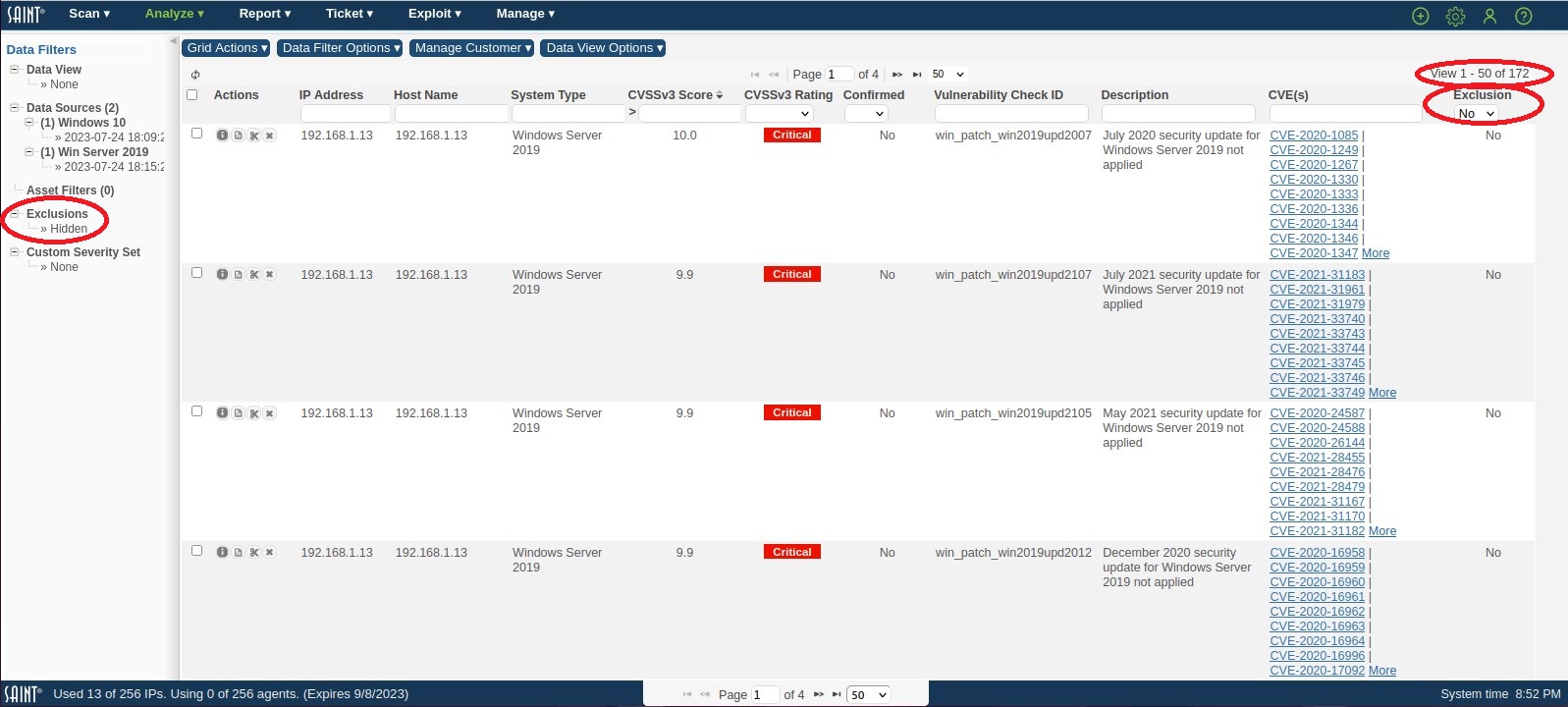
The Hide/Show Exclusion option in the Data Filter Options provides the capability to show results in dashboards and analysis based on all scanned results (Show Exclusions) or filtered to show and compute results based on results that do not have a Vulnerability that is currently flagged as an Exclusions (Hide Exclusions). Click the applicable option in the Data Filter Options dropdown to toggle the results for "what if" analysis based on vulnerabilities that have or have not been flagged as exclusions.
The following screen shots show a series of data results to illustrate this feature: 1) showing all scan results; 2) filtering the records in the Exclusions column to "Yes" to show only records with the Exclusion flag; 3) removing the Exclusion constraint at the Column level and using the Data Filter option to Hide only records set as an Exclusion; and 4) all results but filtered in the data's Exclusions column to see the records that have the Exclusion flag set to "Yes". Note the total record count at the top right of the data grid, as this flag is filtered. See the Exclusions section for more information about how to set exclusions on vulnerabilities.

Asset Filter
This option in the Data Filter dropdown provides the capability to filter the results in the analyze and dashboard grid and Report content based on Asset Tags. Click this option to view the Asset Filter dialog, as shown below:
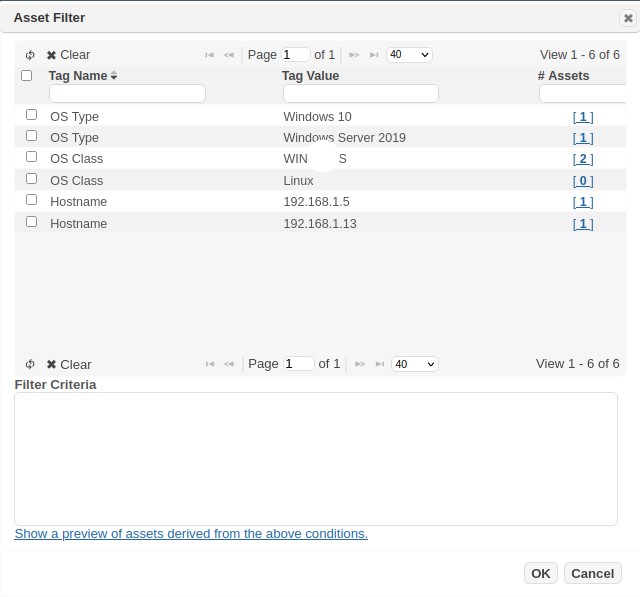
To filter the content:
-
Select a Tag Name for the tag(s) to be displayed (e.g., Criticality)
-
Click on the tag value. Use control-click to select multiple options, as in the example below, to see results for both Criticality High and Medium.
-
Click the Add button to add the filter to the Filter Criteria box
-
Repeat steps 1-3 to add additional Tag criteria.
In this example, we will filter the scan results to location=Dallas and assets that have been tagged as Criticality High or Medium:
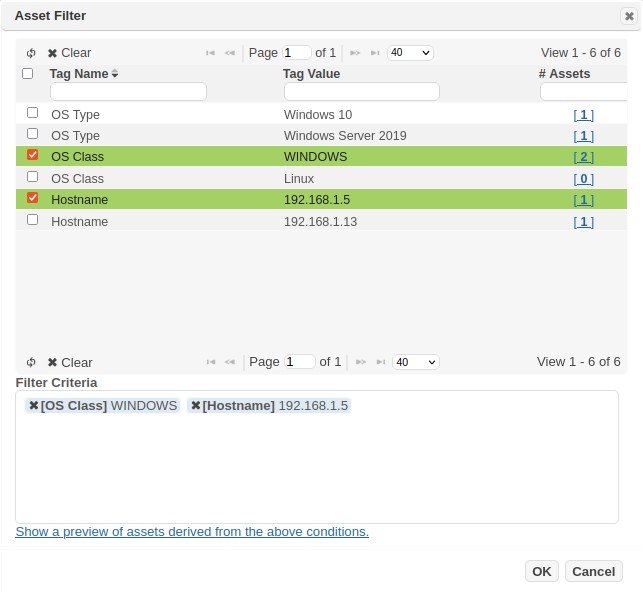
Click OK to save the filter criteria.
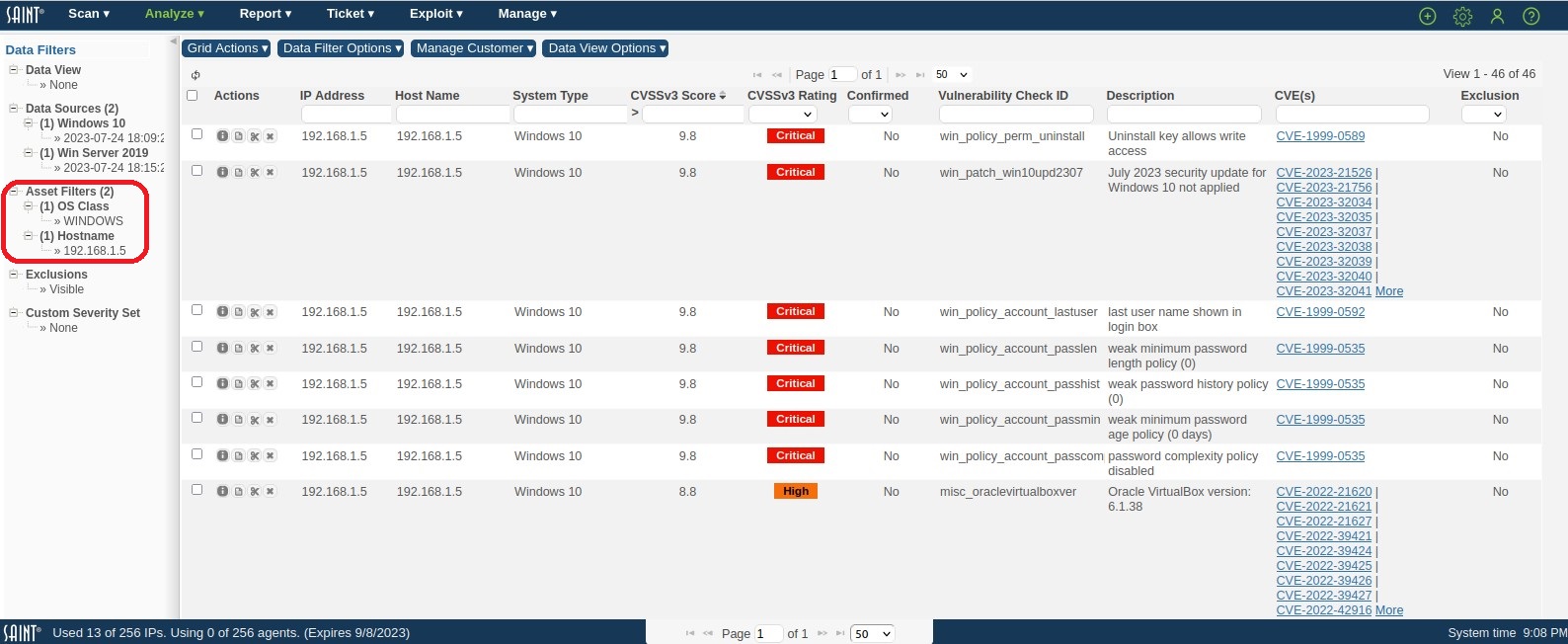
Close the Asset Filter dialog to view the results constrained by the chosen filter(s).
Risk Filter
This option in the Data Filter dropdown provides the capability to filter the results in the analyze and dashboard grid and report content based on risk level and the asset’s risk factors. Click this option to view the Risk Filter dialog, as shown below:
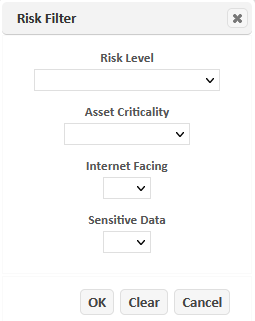
To filter the content, use the drop-down menus to select the risk level, asset criticality, whether the asset is Internet facing, and/or whether the asset has sensitive data. Then click OK. The content will then include only the results which match the selected risk level and asset risk factors. The selections will remain in your user context until they are cleared using the Clear button or by setting each option to blank.
Custom Severities Set
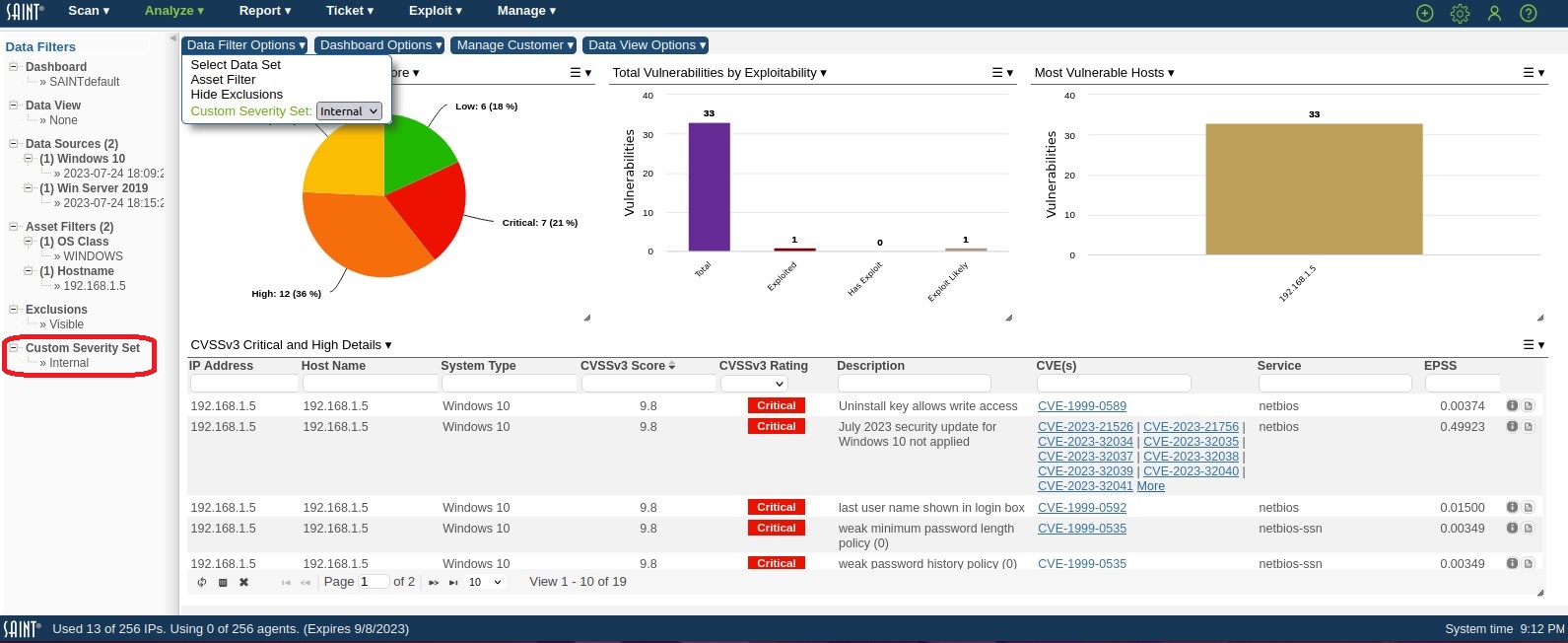
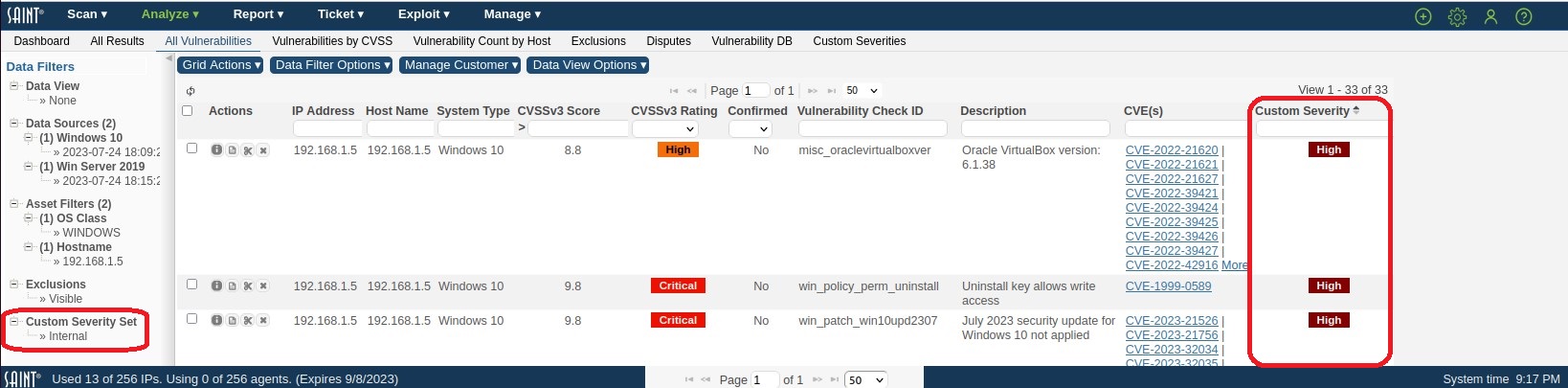
The Custom Severity Set filter option provides the capability to display and compute vulnerability results based on the severities defined locally, rather than by external sources such as SAINT's Severity categories or NIST's CVSS scores. The Custom Severity Set drop-down menu option is available from any page used to display or compute scan results. For example, in the following screen shots, Severity codes of Severe, High, Medium, Low and Acceptable have been previously defined as the "Internal Severity Standards" using the Custom Severities management page found under the Analyze tab. The Dashboard displays computed results, data drill-down and charts based on the vulnerabilities associated with the selected Severity Set. The Analysis tab then provides a more detailed view, displaying the custom severity codes for individual vulnerabilities that are associated with: